
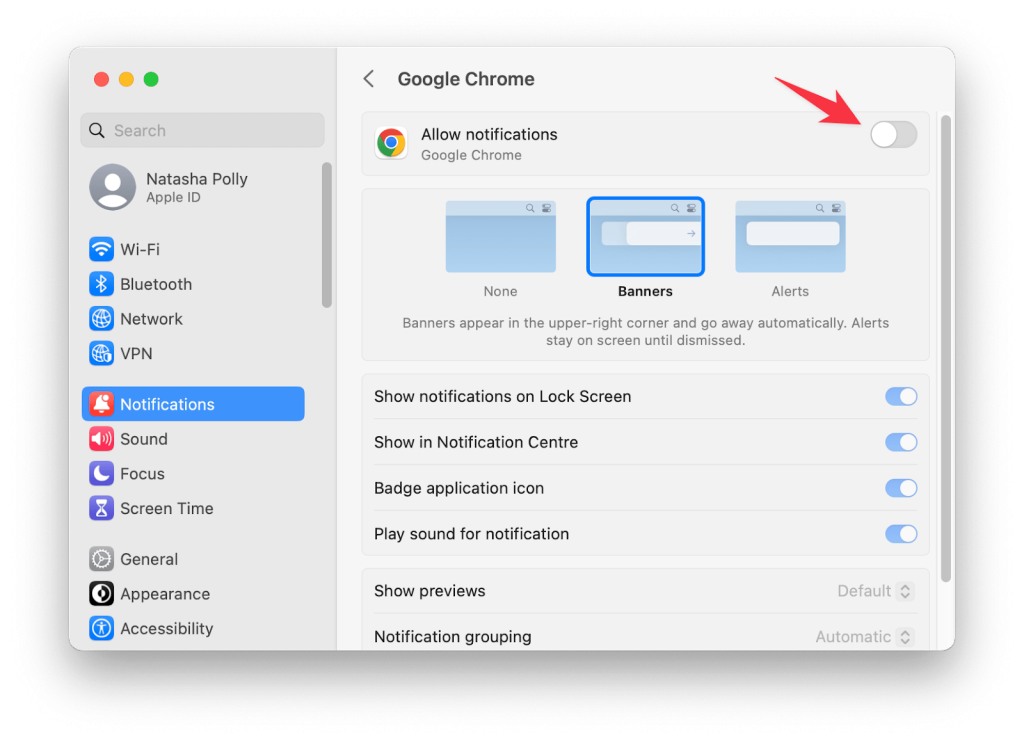
Turn off Device Care Notifications: Are you tired of constant Device Care notifications popping up and interrupting your flow? These alerts might seem helpful at first, but they can quickly become annoying and distracting.
Imagine using your device without those persistent reminders pulling your attention away. You’ll discover simple steps to turn off Device Care notifications for good. Keep reading to take control of your device and enjoy a smoother, distraction-free experience.
Why Device Care Notifications Appear
Device Care notifications appear to keep your device running smoothly. They alert you about battery health, storage issues, or security risks. These alerts help prevent problems before they get worse. Understanding why these notifications appear can help you decide if you want to keep them on or turn them off.
Common Notification Triggers
- Low battery or battery optimization suggestions
- Storage space running low
- Device overheating warnings
- Unusual activity or security threats detected
- App performance affecting device speed
- System updates available for installation
Impact On User Experience
Notifications can be helpful by keeping users informed. They provide quick reminders to take action. However, frequent alerts may become annoying.
Too many notifications can distract users from their tasks. They may interrupt gaming, watching videos, or working.
Some users feel stressed or overwhelmed by constant alerts. Turning off certain notifications can create a calmer phone experience.

Credit: android.stackexchange.com
Methods To Disable Notifications
Notifications from Device Care can be helpful, but they can also become a constant distraction. If you find these alerts unnecessary or intrusive, there are several ways to turn them off. Understanding the different options empowers you to choose the approach that fits your routine best.
Using Device Settings
Start by opening your phone’s Settings. Navigate to the Notificationssection, where you’ll see a list of all apps sending alerts. Scroll down to find Device Care.
Tap on Device Care, and you’ll see toggle switches to control notifications. You can turn off all notifications or customize which types you want to silence. This method gives you control without opening the app itself.
Through Device Care App
Open the Device Care app directly to manage notifications from within. In the app, look for the Settingsor Notification Preferencesmenu. This area usually offers options to disable alerts about battery, storage, or device optimization.
This approach is useful if you want to keep some notifications active but block specific ones. It’s a more targeted way to reduce noise while still getting important updates.
Disabling Via Notification Panel
Have you ever received a Device Care notification and wished you could stop similar messages immediately? You can do that right from the notification panel.
When a Device Care notification appears, swipe down to expand it. Tap the settings icon or long-press the notification to open its options. From here, you can choose to block notifications from Device Care entirely or adjust their importance level.
This method is quick and handy, especially when you want to act on a notification as soon as it pops up. It’s a direct way to silence alerts without digging through menus.
Adjusting Notification Preferences
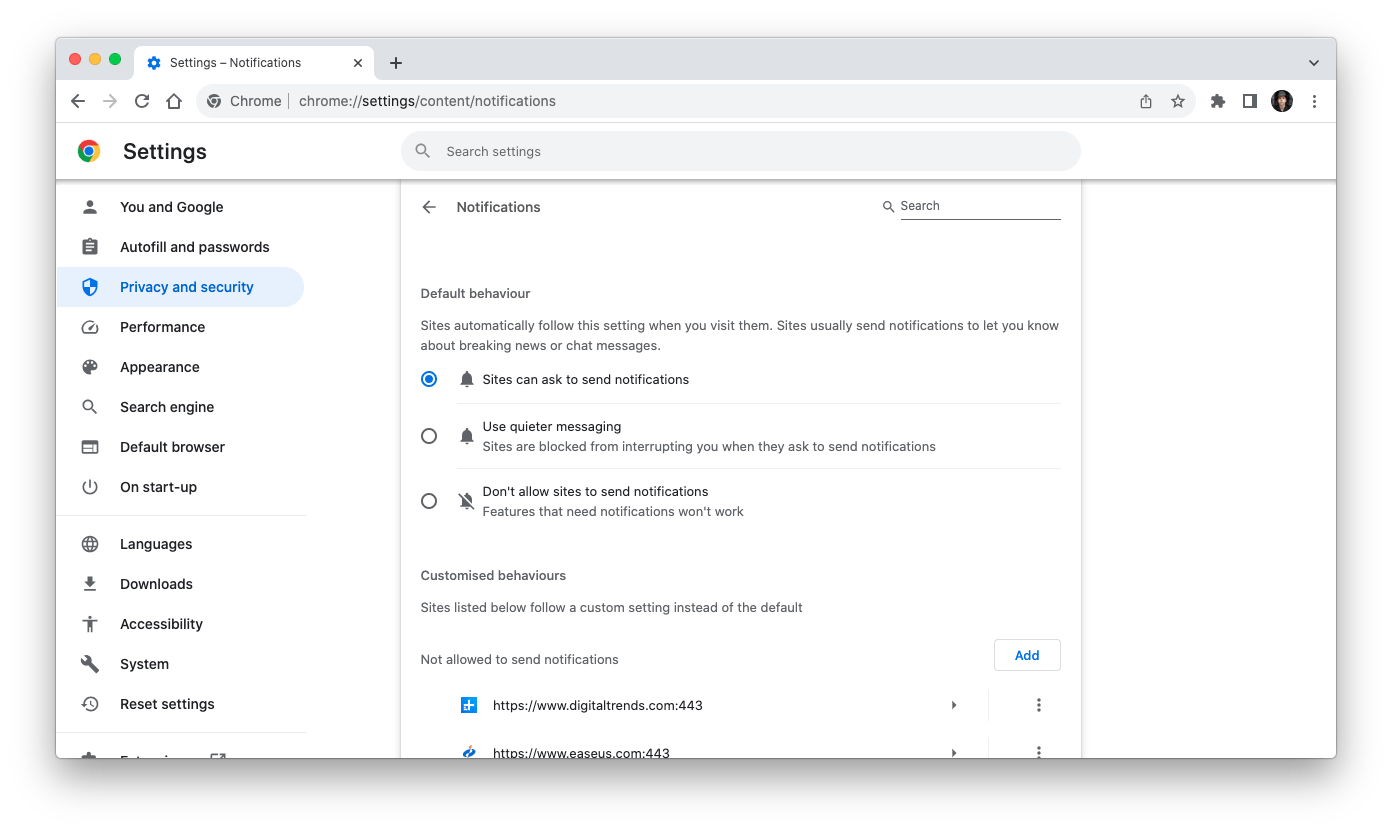
Adjusting notification preferences can be a real game-changer when it comes to managing the constant barrage of alerts on your device. We’ve all been there—you’re in the middle of something important, and suddenly, a notification pops up, disrupting your flow. Learning how to fine-tune these alerts can not only enhance your productivity but also give you back control over your digital life. Let’s dive into some practical ways to manage these notifications effectively.
Managing Notification Categories
Start by organizing your notifications into categories. This can help you prioritize which alerts need immediate attention and which can wait. Most devices allow you to customize notifications by app, letting you decide what types of alerts you receive.
- Go to your device’s settings and find the notification section.
- Select each app and choose the notification type: alert, sound, or none.
- Consider disabling notifications for apps that aren’t crucial to your daily activities.
Think about the apps you use most frequently. Do you really need a ping for every social media update? By managing these categories, you can create a more streamlined and less intrusive notification system.
Setting Do Not Disturb Mode
Sometimes, you need complete silence from your device. That’s where the Do Not Disturb mode comes in handy. This feature is perfect for when you’re in meetings, sleeping, or simply need uninterrupted focus.
- Access the Do Not Disturb settings through your device’s control center or settings menu.
- Set specific hours when you want the feature to activate automatically.
- Allow exceptions for important contacts or apps that you can’t afford to miss.
Consider the times when notifications are most disruptive. Could setting a regular Do Not Disturb schedule improve your daily routine? This small change could enhance your concentration and give you the peace you crave.
Adjusting your notification preferences isn’t just about reducing distraction; it’s about reclaiming your time and focus. What adjustments will you make today to create a more peaceful digital environment?
Credit: setapp.com
Alternative Solutions To Reduce Alerts
Constant device care notifications can interrupt your daily tasks. Reducing these alerts improves your experience without missing important updates. Alternative solutions help keep your device healthy and quiet. They focus on proactive steps to manage performance and maintenance efficiently.
Optimizing Device Performance
Optimize your device to minimize unnecessary alerts. Close unused apps running in the background. Clear cache regularly to free up memory. Limit auto-start apps that drain resources silently. Update software to the latest version for smooth operation. Use power-saving modes to reduce strain on the battery.
Regular Maintenance Tips
Regular care prevents issues that trigger alerts. Restart your device weekly to clear temporary files. Delete unused files and apps to save space. Scan for malware with trusted security apps. Keep storage at least 20% free for better speed. Check battery health and replace if needed to avoid warnings.
Troubleshooting Notification Issues
Dealing with persistent Device Care notifications can be frustrating, especially when you’ve already tried turning them off. Sometimes, these alerts stick around due to underlying app or system settings that need a reset. Troubleshooting notification issues involves a few practical steps that help you regain control and keep your device’s alerts exactly how you want them.
When Notifications Persist
If you’ve disabled Device Care notifications but they keep popping up, it might be because the system hasn’t fully registered your changes. Notifications can also persist if the app has cached old settings or if there are conflicts with other system notifications.
Try closing the Device Care app completely and restarting your device. This simple action can clear temporary glitches. If the notifications still appear, check if any system updates are pending, as these updates often fix bugs related to notifications.
Resetting App Preferences
Resetting app preferences can solve many notification issues without deleting your app data. This action restores all app settings to their defaults, including disabled apps, notification restrictions, and permission settings.
To reset app preferences:
- Go to your device’s Settings.
- Tap on Appsor Applications.
- Click the menu icon (usually three dots) and select Reset app preferences.
- Confirm the reset when prompted.
After this, revisit Device Care notifications and set them according to your preference. You might find that stubborn alerts no longer bother you. Have you noticed how a simple reset can often fix issues that seem complicated at first?

Credit: www.reddit.com
Frequently Asked Questions
How Do I Disable Device Care Notifications On Android?
To turn off Device Care notifications, open Settings, go to Device Care, then Notifications. Toggle off the notifications to stop alerts and reminders from appearing on your device.
Can I Customize Which Device Care Alerts I Receive?
Yes, you can customize alerts. In Device Care settings, select Notification preferences. Choose specific notifications to enable or disable based on your needs.
Why Should I Turn Off Device Care Notifications?
Turning off these notifications reduces distractions and battery usage. It helps keep your notification panel cleaner while maintaining device performance manually.
Will Disabling Device Care Notifications Affect Device Performance?
No, disabling notifications does not affect performance. Your device still optimizes itself; you just won’t receive alerts or reminders about it.
Conclusion
Device Care notifications can be distracting and interrupt your focus. Turning them off helps keep your screen clear and quiet. You stay in control of your device’s alerts and updates. This simple change improves your phone experience every day. Try adjusting your settings now to enjoy fewer interruptions.
It’s easy and takes just a moment. Feel the difference when your device stops buzzing constantly. Peace of mind is just a few taps away.