
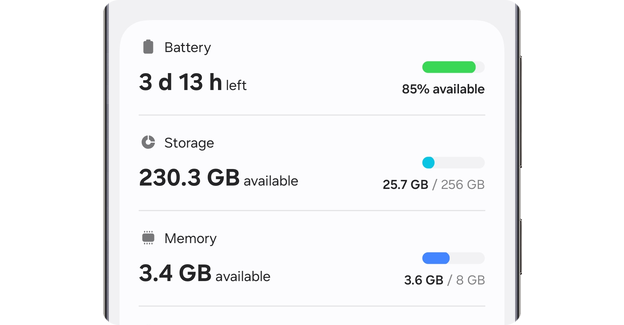
Are you tired of your device running out of power when you need it most? Managing your battery and device care settings can make a huge difference in how long your phone or tablet lasts each day.
Imagine having more control over your device’s performance and keeping it running smoothly without constant interruptions. You’ll discover simple tips and tricks to optimize your battery life and boost your device’s health. Keep reading to unlock easy ways to make your device work better for you.

Credit: www.samsung.com
Battery Health Basics
Understanding your device’s battery health is key to keeping it running smoothly. Battery health basics give you insights into how well your battery can hold a charge and how long it will last over time. By paying attention to these details, you can avoid unexpected shutdowns and extend your device’s usable life.
Battery Life Factors
Several things affect your battery’s life span and performance. The way you charge your device plays a big role. Charging it fully all the time or letting it drop to zero can wear the battery out faster.
Temperature also matters. Using your device in very hot or cold environments can reduce battery efficiency. You might notice your battery drains quicker on a cold day or when your phone gets too warm while gaming.
Background apps and screen brightness can drain your battery without you realizing it. Have you ever checked your battery usage and found an app consuming more power than you expected? Managing these settings helps preserve battery life.
Common Battery Issues
Do you experience your device shutting down suddenly even when the battery shows remaining charge? This often points to battery calibration problems or aging cells inside the battery.
Another frequent issue is slow charging. If your phone takes hours to reach full power, it might be due to a faulty charger, cable, or battery degradation. Checking these components early can save you frustration.
Swelling batteries are less common but dangerous. If you notice your device’s back bulging or the screen lifting, stop using it and seek professional help immediately.
Device Care Features
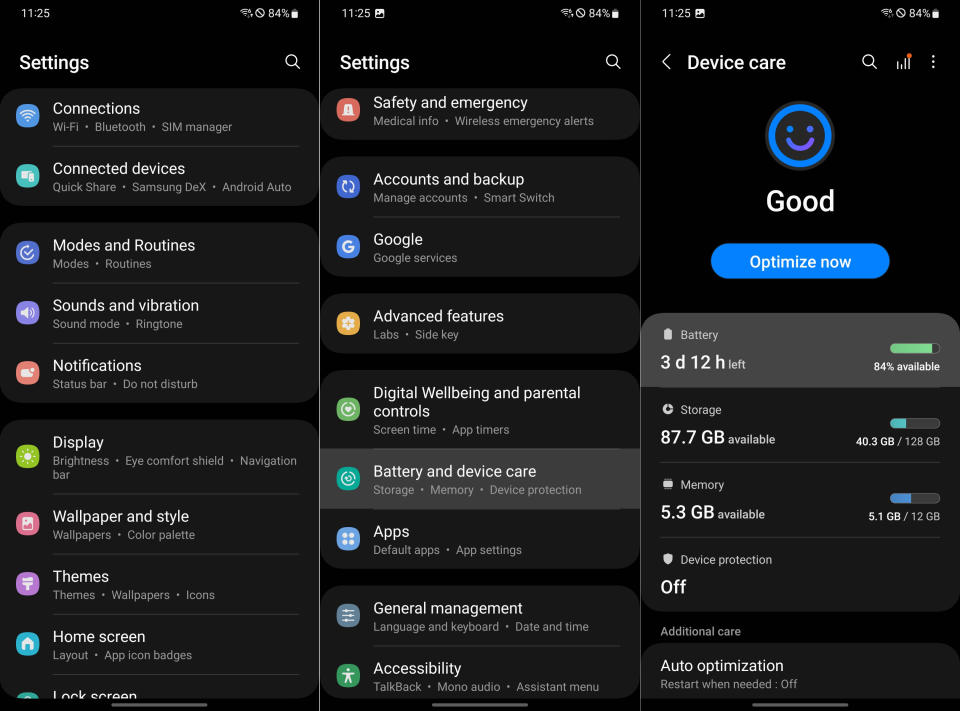
Device Care Features help keep your phone running smoothly. They balance battery life, speed, and security. These tools work quietly in the background. They make sure your device stays fast and safe.
Performance Optimization Tools
Performance tools clear unused apps and free memory. They help your phone run without lag. You can boost speed with just a tap. These tools also close apps that drain battery. Your device stays responsive and quick all day.
Storage Management
Storage management helps you free up space easily. It finds large files and old data to delete. You get suggestions to remove unused apps and duplicates. This keeps your phone from slowing down. You can manage storage without stress or confusion.
Security Enhancements
Security features protect your device from threats. They scan for malware and suspicious activity. Regular checks keep your data safe and private. These enhancements work automatically to guard your phone. You can feel safe while using your device daily.
Battery Saver Modes
Battery Saver Modes help extend your device’s battery life by limiting background activity and reducing power use. These settings adjust performance to keep your phone running longer between charges. Managing them is simple within Battery and Device Care options.
Battery saver modes are essential for extending the life of your device. These settings help you manage power consumption and ensure your device lasts longer. With a range of options available, understanding how to use these modes can make a big difference in your device’s performance.Automatic Battery Saver
Automatic battery saver is a feature that activates when your battery drops to a certain level. This mode automatically adjusts settings to conserve power. It dims the screen brightness, limits background apps, and reduces CPU usage. The goal is to maintain functionality while using less power. Automatic battery saver is perfect for users who want effortless energy management.Customizing Saver Settings
Customizing saver settings allows you to tailor battery saving to your needs. You can decide which apps can run in the background. Adjust the screen brightness level to suit your preference. Set a specific battery percentage for saver activation. This flexibility ensures your device operates efficiently while maintaining essential functions. Custom settings provide a personalized approach to battery management.Charging Tips
Proper charging habits help keep your device’s battery healthy. Following simple charging tips can extend battery life and improve device performance. These tips focus on best practices and how to avoid overcharging.
Best Charging Practices
Use the original charger that comes with your device. It ensures the right voltage and current. Charge your device in a cool, dry place to prevent overheating. Avoid using your device heavily while charging. It can increase battery temperature and reduce lifespan. Try to keep the battery level between 20% and 80%. Charging within this range helps maintain battery health. Unplug the charger once your device reaches 100% to prevent unnecessary stress.
Avoiding Overcharging
Leaving your device plugged in for long hours can harm the battery. Modern devices have protections but avoiding constant full charges is better. Use smart plugs or charging timers to limit charging time. Avoid charging your device overnight regularly. It keeps the battery from staying at full charge too long. Regularly check battery settings for any apps draining power while charging. This reduces heat and prevents potential battery damage.
App Management
Managing your apps effectively can dramatically improve your device’s battery life and overall performance. Apps often run in the background, consuming power and slowing down your phone without you realizing it. Taking control of app behavior is a smart way to keep your device running smoothly throughout the day.
Identifying Battery-draining Apps
Start by checking which apps are using the most battery on your device. Most smartphones provide a detailed breakdown showing battery consumption by each app. This allows you to spot apps that might be draining your battery excessively.
Look for apps you rarely use but still consume a lot of power. Sometimes social media or gaming apps run background processes that eat battery without active use. Have you noticed your battery dropping faster after using certain apps? That’s a clear sign to dig deeper.
Background Activity Control
Many apps continue running in the background, refreshing content or sending notifications even when you’re not actively using them. Controlling this background activity can save significant battery life.
You can restrict background activity for specific apps through your device’s settings. This means the app will only work when you open it, avoiding unnecessary battery drain. Think about which apps really need constant updates and which ones can wait until you launch them.
Try turning off background activity for apps that aren’t essential. You’ll likely see an immediate improvement in battery life and device speed. What apps on your phone do you think could stay off until you actually need them?
Software Updates
Software updates play a crucial role in keeping your device running smoothly and your battery healthy. They bring improvements that can fix bugs, enhance security, and optimize system performance. Skipping updates might seem convenient, but it can lead to slower performance and faster battery drain over time.
Importance For Battery And Performance
Software updates often include patches that improve how your device manages power consumption. These updates can fix processes that unnecessarily use CPU resources, which directly impacts battery life. I once ignored an update for weeks and noticed my phone heating up and losing charge faster—after updating, the difference was clear.
Besides battery, updates can boost overall performance by refining the operating system and apps. This means smoother multitasking, faster app launches, and fewer crashes. Have you experienced your device slowing down after a long time without updates?
How To Manage Updates
Managing updates ensures you get the benefits without disrupting your usage. You can set your device to download and install updates automatically during off-peak hours, like overnight. This way, your device stays current without interrupting your daily routine.
- Check for updates regularly in your device settings.
- Enable automatic updates if you prefer hassle-free maintenance.
- Review update details before installing to understand what’s changing.
- If storage is tight, consider deleting unused apps or files before updating.
Would you rather update immediately or wait and see how others react? Your choice can impact your device’s health. Being proactive with updates can save you from frustrating performance issues later.
Advanced Settings
Advanced settings in Battery and Device Care offer tools that go beyond the basics, giving you more control over how your device manages power and performance. These options help you fine-tune your phone to suit your habits and needs. Understanding and using these features can extend your battery life and improve overall device efficiency.
Developer Options For Battery
Developer options include settings that are usually hidden but can be activated to access detailed battery controls. These options allow you to monitor background processes and limit apps that consume too much power. Have you noticed some apps draining your battery faster? Developer options help you identify and restrict those apps.
Enabling features like “Background process limit” lets you control how many apps run simultaneously, reducing battery strain. You can also enable “Show CPU usage” to see which apps are using the most processing power in real time. This hands-on approach can save battery by stopping unnecessary activity behind the scenes.
Battery Usage Analytics
Battery usage analytics give you a clear breakdown of what’s consuming your battery. Instead of guessing, you get precise data on app usage, screen time, and hardware activity. This helps you spot patterns that might surprise you, such as apps running in the background without your knowledge.
With this data, you can take specific actions like turning off notifications for power-hungry apps or adjusting screen brightness for better efficiency. Have you ever wondered why your battery drops so quickly in certain situations? Analytics provide the answers and guide you to smarter choices.
- Track battery drain by app and time period
- Identify unusual power consumption spikes
- Adjust settings based on real usage patterns
Using these advanced tools, you gain control over your device’s energy use and can make informed decisions to keep your phone running longer throughout the day.
Credit: tech.yahoo.com

Credit: eu.community.samsung.com
Frequently Asked Questions
What Are Battery And Device Care Settings?
Battery and Device Care Settings optimize your device’s performance. They manage battery usage, storage, memory, and security. This helps extend battery life and keep your device running smoothly.
How Do Battery Care Settings Improve Battery Life?
Battery Care Settings monitor usage patterns and adjust charging speed. They prevent overcharging by stopping at 80-90%. This reduces battery wear and prolongs overall battery lifespan.
Can Device Care Boost My Phone’s Speed?
Yes, Device Care clears unnecessary files and frees up RAM. It closes background apps to improve speed. This results in faster app launches and smoother operation.
Are Battery And Device Care Settings Safe To Use?
Absolutely. These settings use built-in system tools designed by manufacturers. They don’t harm your data or device. Instead, they enhance performance and protect your device’s health.
Conclusion
Taking care of your battery and device helps them last longer. Simple settings can save power and keep your device healthy. Check battery use and adjust settings often. Avoid letting your battery drain completely. Keep your device cool and update software regularly.
Small actions make a big difference in device life. Stay mindful of these tips to enjoy smooth performance every day. Easy to follow, these habits protect your device and save energy.