
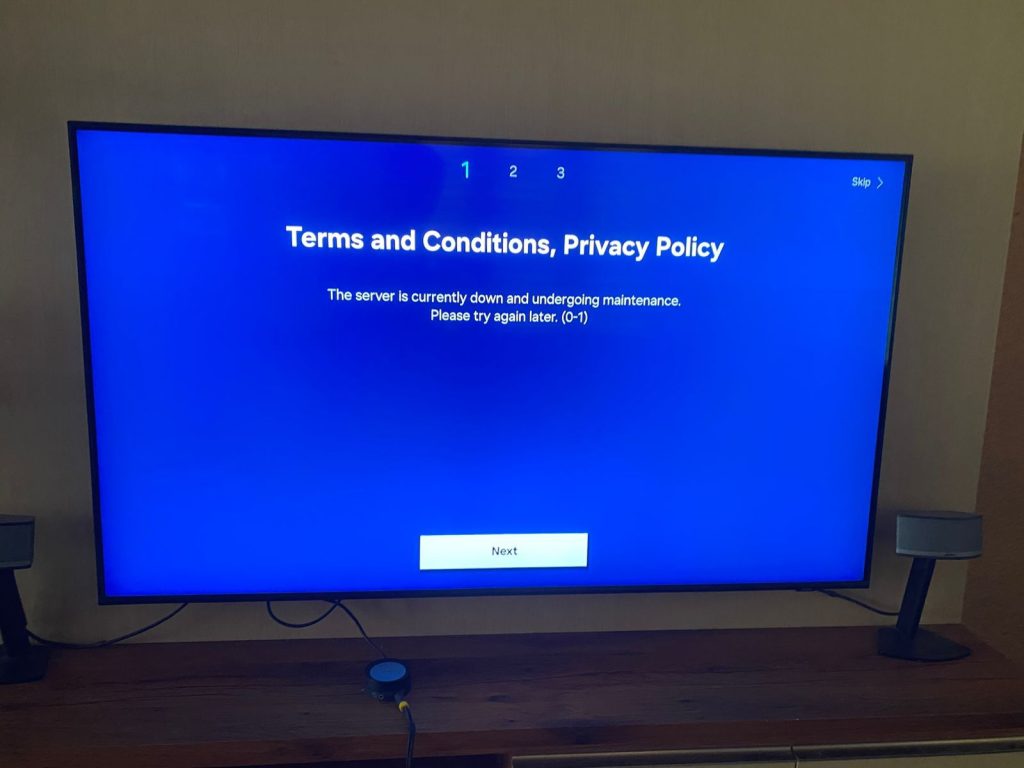
Is your Samsung TV showing “Device Care Not Available”? This can be frustrating when you want to keep your TV running smoothly.
But don’t worry—there are simple steps you can take to fix this issue and get your TV back to top shape. You’ll learn exactly why this message appears and how to solve it quickly. Keep reading to regain full control over your Samsung TV’s performance.
Why Device Care Might Be Missing
Not seeing Device Care on your Samsung TV can be frustrating, especially when you want to optimize performance or free up space. Understanding why this feature might be missing helps you decide the next steps. Let’s look at the most common reasons behind its absence.
Software Version Limits
Device Care is tied closely to your TV’s software version. If your Samsung TV is running an older or outdated version, the feature may not be available. Updating your TV’s firmware can sometimes unlock Device Care, but not always.
Many users miss this point and assume the feature should be there by default. But software updates are released gradually and may not include Device Care for all models immediately.
Regional Restrictions
Samsung limits some features based on the region where the TV is sold. Device Care might be available in certain countries but not in others due to regulatory or market reasons.
For instance, a TV purchased in the U.S. might have Device Care, while the same model sold elsewhere might not. Checking your TV’s region settings can clarify whether this feature is intended for your location.
Model Compatibility
Not all Samsung TV models support Device Care. Older or budget models often skip this feature to keep costs down. Even within the same series, some variations may lack Device Care.
If your TV is a few years old or a lower-tier model, it’s possible Device Care was never designed for it. You can verify this by looking up your model number on Samsung’s official support page.

Credit: www.youtube.com
Basic Troubleshooting Steps
Basic troubleshooting helps fix common issues with your Samsung TV quickly. These steps clear minor glitches that may cause Device Care to be unavailable. Follow simple actions to restore normal function without extra tools or help.
Restarting Your Tv
Turn off your TV using the remote or power button. Unplug it from the wall outlet. Wait at least 30 seconds to let the system reset. Plug the TV back in and power it on. This process refreshes the TV’s memory and closes background tasks that may block Device Care.
Checking For Software Updates
Open the TV’s Settings menu. Navigate to Support and select Software Update. Choose Update Now to check for new firmware. Install any available updates to ensure your TV runs the latest software. Updated software fixes bugs that might cause Device Care issues.
Resetting Smart Hub
Access Settings and go to Support. Find the Self Diagnosis option and select Reset Smart Hub. Enter your TV PIN if prompted (default is 0000). This resets the Smart Hub to factory defaults, resolving app-related problems. It can restore Device Care functionality by clearing corrupted data.
Alternative Tools To Manage Device Care
Noticing that the Device Care feature isn’t available on your Samsung TV can be frustrating. However, alternative tools can help you manage your TV’s performance effectively. Whether you’re looking for apps or manual methods, there’s a solution waiting for you. Let’s dive into some practical ways to keep your TV running smoothly, without relying on the built-in Device Care option.
Using Samsung Smartthings App
The Samsung SmartThings app is a versatile tool that can assist in managing your TV’s performance. By connecting your TV to SmartThings, you can monitor its status and control settings directly from your smartphone. This app allows you to check for updates, optimize settings, and even turn your TV on and off remotely.
Imagine being able to adjust your TV’s sound or picture settings while relaxing on your couch. It’s not just convenient; it also ensures that you get the best viewing experience without manually fiddling with the remote. Have you tried using SmartThings to streamline your TV management?
Third-party Maintenance Apps
There are several third-party apps designed to enhance your TV’s performance. These apps often offer features like cache clearing, memory optimization, and system updates. While Samsung SmartThings is limited to Samsung devices, third-party apps might offer broader compatibility.
Look for apps with good reviews and a proven track record. Some popular options include TV optimization apps available on app stores, which can provide insights into your TV’s performance and suggest improvements. Have you explored these apps to give your TV a performance boost?
Manual Device Optimization
If you prefer a hands-on approach, manual optimization can be quite effective. Regularly updating your TV’s firmware ensures you have the latest features and fixes. Adjusting picture and sound settings to suit your environment can also enhance your viewing experience.
Consider performing periodic checks to clear cache and manage storage space. This not only keeps your TV running smoothly but also prolongs its lifespan. Are you ready to take control and optimize your TV manually?

Credit: eu.community.samsung.com
Advanced Fixes For Persistent Issues
When Device Care on your Samsung TV is not available and basic troubleshooting hasn’t helped, it’s time to try advanced fixes. These steps require more attention but can resolve persistent issues that simple resets or updates won’t touch. You’ll regain control over your TV’s performance by carefully applying these solutions.
Factory Reset Your Tv
Performing a factory reset wipes all settings and returns your TV to its original state. This can fix deep software conflicts causing the Device Care feature to disappear. Before you reset, back up any important data or settings because this process deletes everything you’ve customized.
To reset your Samsung TV:
- Go to the Settings menu
- Select General
- Choose Reset and enter your PIN if prompted
- Confirm the reset and wait for the TV to restart
Have you ever noticed how some glitches vanish after a reset? This simple step often clears hidden errors that cause features like Device Care to malfunction.
Reinstalling Firmware
Corrupted firmware can cause features to disappear or behave erratically. Reinstalling or updating the firmware ensures your TV runs the latest, most stable software. You can download the firmware from Samsung’s official website using a USB drive and install it manually.
Make sure to:
- Check your TV model number carefully
- Download the exact firmware version for your model
- Follow Samsung’s instructions step-by-step to avoid bricking your TV
This approach might feel technical but it’s often the key to fixing persistent bugs that updates via the TV itself miss. Have you checked if your firmware is current lately?
Contacting Samsung Support
If advanced fixes don’t solve the problem, Samsung Support can offer tailored help. Their technicians have tools to diagnose issues remotely or guide you through complex procedures you might not be comfortable performing alone.
When you reach out, be ready to provide:
- Your TV’s model and serial number
- A detailed description of the problem
- What troubleshooting steps you’ve already tried
Getting expert advice can save time and prevent accidental damage. Isn’t it worth a quick call to avoid turning a small issue into a costly repair?
Preventing Device Care Issues In Future
Preventing Device Care issues on your Samsung TV helps keep it running smoothly. Taking simple steps can stop problems before they start. These practices improve performance and extend your TV’s lifespan.
Regular Software Updates
Keep your Samsung TV software up to date. Updates fix bugs and improve system stability. Check for updates often in the settings menu. Install updates as soon as they become available. This ensures your Device Care works correctly.
Avoiding Unsupported Apps
Only use apps from trusted sources on your TV. Unsupported apps can cause conflicts and slow down Device Care. Remove apps you no longer use or that cause errors. Stick to apps recommended by Samsung for better compatibility.
Maintaining Network Stability
A stable internet connection supports Device Care functions. Use a strong Wi-Fi signal or a wired Ethernet connection. Avoid network interruptions during TV updates or scans. Restart your router regularly to keep the network steady.

Credit: eu.community.samsung.com
Frequently Asked Questions
Why Is Device Care Not Available On My Samsung Tv?
Device Care may be missing due to firmware updates or region restrictions. Check for software updates and restart your TV. If unavailable, contact Samsung support for region-specific features.
How To Update Samsung Tv To Enable Device Care?
Go to Settings > Support > Software Update and select Update Now. Keeping your TV updated ensures access to features like Device Care and improves performance.
Can Device Care Be Installed Separately On Samsung Tvs?
No, Device Care is integrated into Samsung TVs via system updates. It cannot be installed separately. Ensure your TV firmware is current to access this feature.
What Alternatives Exist If Device Care Is Unavailable?
Use built-in settings to clear cache, manage storage, and optimize performance manually. Regularly restart your TV and uninstall unused apps to maintain smooth operation.
Conclusion
Device Care may not show on some Samsung TVs. This can happen due to model or software limits. Try updating your TV’s system first. Restart the TV and check for new apps. Use alternative tools to clean and manage your device.
Regular maintenance keeps your TV running smoothly. Stay patient and follow simple steps to fix issues. Your Samsung TV can still work well without Device Care. Keep exploring easy ways to improve your viewing experience. Small actions often make a big difference.