
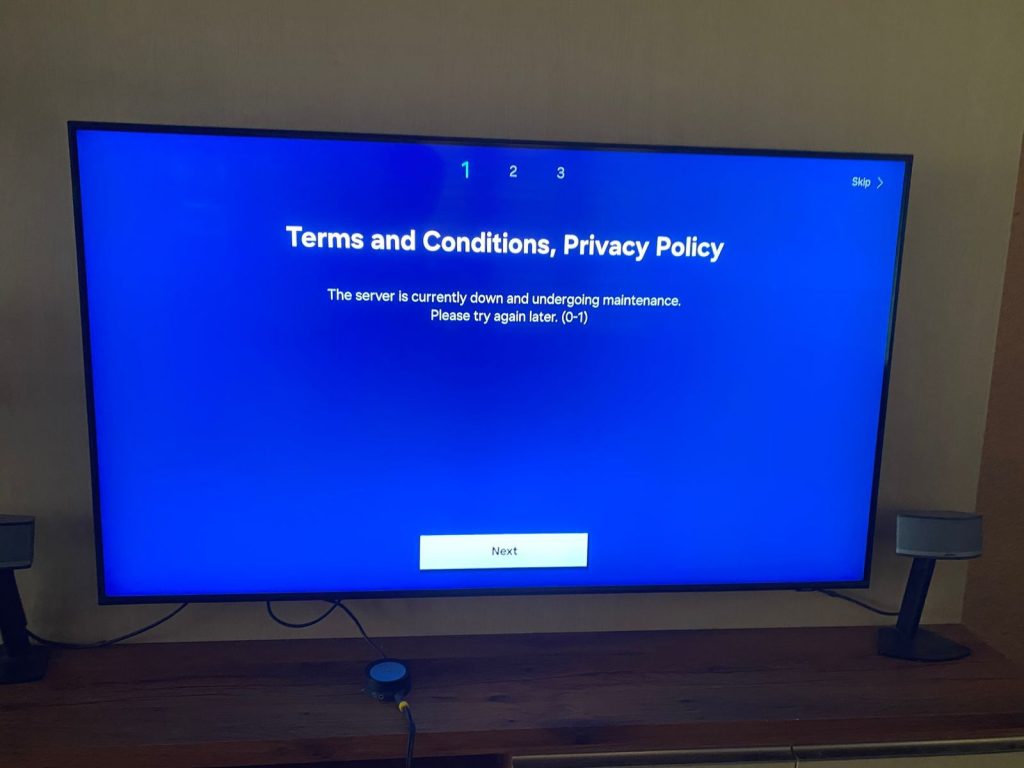
Are you frustrated because your Samsung TV’s Device Care feature is not available? You’re not alone.
This handy tool helps keep your TV running smoothly by managing storage, closing apps, and optimizing performance. When it disappears or won’t open, it can feel like your TV is slowing down or acting up. But don’t worry—there are simple steps you can take to fix this issue and get your TV back in top shape.
Keep reading to find out exactly what’s causing the problem and how you can solve it quickly.

Credit: eu.community.samsung.com
Reasons Device Care Might Be Missing
Not finding the Device Care feature on your Samsung TV can be frustrating. There are several reasons why this option might be missing from your settings menu. Understanding these reasons can help you troubleshoot and decide on the next steps to get your TV running smoothly.
Software Version Issues
Device Care is tied closely to your TV’s software version. If your TV’s firmware is outdated, the feature may not appear at all. Samsung often includes new features like Device Care in recent updates, so missing it could mean you need to update your system.
Have you checked if your TV is running the latest software? Sometimes, a simple update fixes the problem immediately. You can usually find updates under Settings > Support > Software Update.
Regional Restrictions
Samsung tailors features based on geographic regions, which means Device Care might not be available everywhere. Some countries have different regulations or market needs that influence which features Samsung includes.
For example, users in certain regions report missing Device Care despite having compatible models. This raises the question: Could your TV’s missing feature be linked to where it was purchased or set up?
Device Model Limitations
Not all Samsung TV models support every feature. Older models or budget lines might lack Device Care because their hardware or software can’t handle it. Even within the same brand, functionality varies widely.
Check your TV’s model number against Samsung’s official feature list. If your model is on the lower end or a few years old, the absence of Device Care could be by design. Does your TV fall into this category?

Credit: www.youtube.com
Basic Troubleshooting Steps
When your Samsung TV shows “Device Care Not Available,” it can be frustrating. Before you consider professional help, try some basic troubleshooting steps. These simple actions often fix the problem quickly and save you time.
Restart Your Tv
Turning your TV off and on again can clear temporary glitches. Unplug it from the power source, wait about 30 seconds, then plug it back in. This simple restart can refresh the system and restore Device Care functionality.
Have you noticed how many tech issues vanish after a quick reboot? Your TV is no different—it often just needs a fresh start.
Check For Software Updates
Outdated software can cause features like Device Care to disappear. Go to your TV’s settings and look for the software update option. If an update is available, install it to ensure your TV runs the latest version with all features intact.
Keeping your TV updated not only fixes bugs but also improves overall performance. Missing updates might be the reason Device Care isn’t showing up on your screen.
Reset Device Settings
If restarting and updating don’t work, try resetting device settings. This option restores system preferences without deleting your personal data. Navigate to the settings menu, find the reset option, and select “Reset Device Settings.”
Resetting can fix hidden configuration errors that block Device Care. Have you checked if your settings have changed accidentally? This reset brings them back to default, often solving the issue.
Advanced Fixes To Try
Troubleshooting advanced issues can help restore Device Care on your Samsung TV. Checking for firmware updates and resetting the TV often solves the problem. Clearing cache or reinstalling apps might also bring the feature back.
When Samsung TV Device Care isn’t available, frustration can set in. For those experiencing this issue, there are advanced fixes to try. These solutions can help restore functionality and ensure smooth operation. Below are some effective techniques to explore.Clear Cache And Data
Clearing cache can resolve many app-related problems. Cached data can sometimes cause glitches and slow performance. Navigate to your TV’s settings menu. Select the ‘Apps’ option. Locate the Device Care app. Choose ‘Clear Cache’ and ‘Clear Data.’ This removes stored information. It can refresh the app’s functionality.Reinstall Device Care App
Reinstalling can fix persistent issues. First, uninstall the Device Care app from your TV. Go to the settings and find the app under ‘Apps.’ Click ‘Uninstall.’ After removal, reinstall the app from the store. This step can resolve software conflicts. Ensure you have the latest version for optimal performance.Factory Reset Your Tv
A factory reset can solve complex issues. Be aware, this erases all settings and data. Navigate to the TV’s settings menu. Select ‘General’ and then ‘Reset.’ Confirm the reset action. This restores the TV to its default state. It’s a powerful method but should be used as a last resort.Preventing Future Issues
Preventing future issues with your Samsung TV helps keep it running smoothly. Taking simple steps reduces the chance of errors like “Device Care Not Available.” Regular care improves performance and extends your TV’s life. Focus on key habits to avoid problems and enjoy a better viewing experience.
Keep Software Updated
Always update your TV’s software. Updates fix bugs and improve features. They protect your TV from errors and security risks. Check for updates in the settings menu often. Installing updates keeps your TV stable and responsive.
Avoid Unsupported Apps
Use apps designed for your Samsung TV. Unsupported apps can cause crashes and slowdowns. Download apps only from the official app store. This reduces the risk of software conflicts. Choose reliable apps for smooth and safe TV use.
Regular Device Maintenance
Clean your TV and its remote regularly. Dust and dirt can affect performance. Turn off the TV and unplug it before cleaning. Use a soft cloth to wipe the screen and vents gently. Also, restart your TV occasionally to refresh its system.
When To Contact Samsung Support
Knowing the right moment to contact Samsung Support can save time and reduce frustration. Some issues with the Samsung TV Device Care might be temporary, but persistent problems need professional help. Recognizing these signs helps you get proper assistance quickly. Preparing well before reaching out makes the support process smoother and more effective.
Identifying Persistent Problems
Look for repeated errors or features not working at all. If Device Care remains unavailable after restarting your TV, it may signal a deeper issue. Problems that last more than a day or appear after software updates need attention. Also, check if other functions on the TV are slow or unresponsive. These clues indicate the need for expert help.
Preparing For Support Calls
Gather important details before calling Samsung Support. Have your TV model number and purchase information ready. Note down any error messages you see on the screen. Describe what you tried to fix the problem yourself. This preparation helps the support team diagnose and solve the issue faster.
Using Samsung’s Online Resources
Samsung offers many online tools to assist with TV problems. Visit their official support website for guides and troubleshooting tips. Use live chat or community forums to ask questions and find answers. Online resources can provide quick solutions without waiting on the phone. Check for software updates or download manuals for your TV model.

Credit: eu.community.samsung.com
Frequently Asked Questions
Why Is Samsung Tv Device Care Not Available?
Samsung TV Device Care may be unavailable due to region restrictions or software limitations. Some models do not support this feature. Check for updates or consult your TV’s manual to confirm compatibility.
How Can I Access Device Care On My Samsung Tv?
To access Device Care, go to Settings > Support > Device Care. If the option is missing, your TV model might not support it, or a firmware update may be required.
Can I Update Samsung Tv Firmware To Enable Device Care?
Yes, updating your TV’s firmware can sometimes enable Device Care. Navigate to Settings > Support > Software Update and select Update Now to check for the latest version.
What Alternatives Exist If Samsung Device Care Is Unavailable?
If Device Care is missing, manually clear cache, close apps, or restart your TV. Use external apps or reset settings to optimize performance.
Conclusion
Samsung TV Device Care may not show due to software or settings issues. Restart your TV to refresh its system. Check for the latest software updates regularly. Clear cache and unused apps to free up space. Reset your TV’s settings if problems persist.
Keep your device clean for better performance. These steps help maintain your Samsung TV smoothly. Stay patient and follow simple fixes to resolve issues. Your TV can work well again with proper care.