
Have you ever noticed your Android phone running slower or its battery draining faster than usual? You might be missing out on a simple tool designed to keep your device running smoothly: the Device Care app.
This app works quietly in the background to boost your phone’s performance, clear out junk files, and extend battery life. If you want to get the most out of your Android device without complicated steps, understanding how Device Care works can make a big difference.
Keep reading to discover how this app can help you take control of your phone’s health effortlessly.

Credit: www.samsung.com
Device Care App Basics
The Device Care app on Android is designed to keep your phone running smoothly without much effort from you. It acts like a personal assistant for your device’s health, managing everything from battery life to storage space. Understanding the basics of this app helps you make the most of its features and maintain your device’s performance effortlessly.
Purpose And Features
Device Care helps you optimize your phone by monitoring key areas such as battery usage, storage, memory, and security. It offers features like:
- Battery management:Shows which apps drain your battery and suggests ways to extend battery life.
- Storage cleaner:Identifies unnecessary files and cache you can remove to free up space.
- Memory optimization:Closes background apps to boost your phone’s speed.
- Security checks:Scans for malware and keeps your device safe.
These features work together to prevent slowdowns and keep your phone responsive all day long.
Compatibility With Android Versions
Device Care is typically available on Samsung devices starting from Android 8.0 Oreo and above. Some other Android brands offer similar apps but may call them different names or include fewer features.
If you’re using a phone with an older Android version, you might not find Device Care pre-installed. In that case, third-party apps can offer similar functions, but they might not be as integrated or efficient.
How To Access Device Care
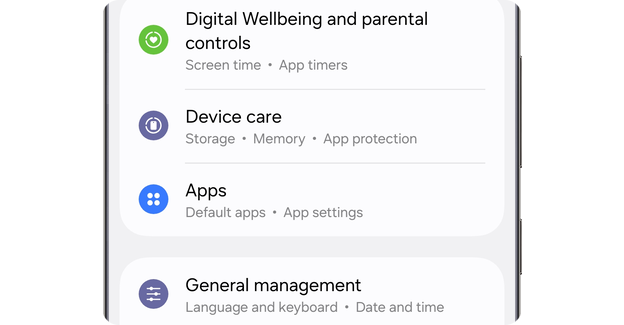
Accessing Device Care is straightforward. On most Samsung phones, you can find it by:
- Opening the Settingsapp.
- Scrolling down to tap on Device Careor Device Maintenance.
Alternatively, you can swipe down from the top to open the notification shade and search for Device Care in the quick settings panel.
Have you checked your Device Care app recently? Taking a minute to explore it can reveal hidden issues and quick fixes you might have missed.

Credit: www.sammyfans.com
Performance Optimization Tools
The Device Care app on Android offers a suite of performance optimization tools designed to keep your phone running smoothly. These tools help you manage critical aspects like battery life, storage space, memory usage, and security. Understanding how each feature works can help you make the most out of your device without needing extra apps.
Battery Management
Battery Management in Device Care gives you clear insights into which apps drain your battery the most. You can easily put power-hungry apps to sleep or restrict background activity to extend your phone’s battery life. Have you noticed your battery fading quickly during the day? This tool helps you pinpoint the cause and fix it fast.
Storage Cleanup
Running out of storage can slow down your phone and cause apps to crash. The Storage Cleanup feature scans your device for unnecessary files like cached data, duplicate photos, and unused apps. It lets you delete these cluttering files with a single tap, freeing up space and improving overall performance.
Memory Boost
Memory Boost clears background apps and processes that consume your RAM, making your device faster and more responsive. If your phone feels sluggish, this tool can help speed it up without requiring a restart. It’s like giving your phone a quick refresh, so you can jump back to your tasks without delay.
Security And Virus Scan
Security is a top priority, and the Device Care app includes a virus scan feature to detect malware and suspicious apps. Regular scans help protect your personal data and keep your device safe from threats. Do you regularly check your phone for viruses? This built-in tool makes it simple to stay secure without extra effort.
Customizing Device Care Settings
Customizing the Device Care app settings on your Android phone helps you maintain peak performance without constant manual effort. Tweaking these options lets you control how the app interacts with your device, saves battery life, and keeps your phone running smoothly. Understanding these settings gives you the power to create a maintenance routine that fits your daily habits and preferences.
Automatic Optimization
Automatic optimization is a handy feature that keeps your phone in good shape without you lifting a finger. You can enable it to clear cache, close unused apps, and free up memory regularly. This means your device stays fast and responsive even if you forget to check it yourself.
Think about the last time your phone suddenly slowed down during an important call or task. Setting automatic optimization can prevent these moments by handling cleanup quietly in the background.
Notification Preferences
Device Care can notify you about battery status, storage issues, or performance alerts, but too many notifications can be distracting. You can customize which alerts you want to receive and silence those you find unnecessary. This way, your phone only interrupts you with the most important updates.
For example, if you prefer to manage storage yourself but want alerts about battery health, you can adjust the settings accordingly. Tailoring notifications keeps you informed without feeling overwhelmed.
Scheduling Scans
Scheduling scans lets you pick the best time for your device to check its health and clean up unnecessary files. You can set the app to run scans daily, weekly, or at any interval that fits your routine. This ensures your phone gets regular care without interfering with your usage.
If you often leave your phone charging overnight, scheduling scans during those hours is a smart choice. It maximizes maintenance while your device is idle, so you start the day with a fresh, optimized phone.
Common Issues And Fixes
Device Care App on Android is designed to keep your phone running smoothly. However, you might face some common issues that can disrupt its performance. Understanding these problems and knowing how to fix them can save you time and frustration.
App Not Responding
If the Device Care App freezes or stops responding, it might be due to cached data buildup or software conflicts. Clearing the app cache often resolves this issue quickly. You can do this by going to Settings > Apps > Device Care > Storage > Clear Cache.
Sometimes, a simple restart of your phone can also help the app regain responsiveness. If the problem persists, check for any available updates in the Google Play Store. Are you regularly updating your apps to avoid such glitches?
Optimization Not Working
When the optimization feature fails to improve your phone’s performance, it could be because of background apps interfering or insufficient permissions. Make sure Device Care has all necessary permissions enabled under Settings > Apps > Device Care > Permissions.
Also, some third-party apps might block Device Care from performing full optimization. Try closing or uninstalling suspicious apps and then run the optimization again. Have you noticed specific apps causing your phone to slow down?
Battery Drain Problems
Battery drain can be frustrating, especially when you expect Device Care to help extend battery life. The app might not accurately detect power-hungry apps if battery optimization settings are disabled for certain applications.
Check your battery usage details under Settings > Batteryto identify apps draining power excessively. Then, use Device Care to optimize battery settings or manually restrict background activity for these apps. What apps are silently draining your battery without you realizing it?
Tips For Maximizing Device Care
Maximizing the Device Care app on Android helps keep your phone running smoothly. Implementing a few simple habits can ensure optimal performance and extend the life of your device. Below are practical tips to enhance your device care routine.
Regular Maintenance Habits
Regularly check and clean your device. Remove unnecessary files and cache. This frees up space and prevents slowdowns. Schedule routine app updates. Updated apps often run better and use fewer resources.
Combining With Other Apps
Use apps that complement Device Care. Security apps can protect against malware. Battery saver apps can prolong battery life. Together, they create a powerful maintenance toolkit.
Understanding Device Health Reports
Device Care provides health reports. Learn to read them. They show battery usage, storage stats, and more. These insights help identify problem areas. Address issues early for better performance.

Credit: www.samsung.com
Frequently Asked Questions
What Is The Device Care App On Android?
Device Care is a built-in Android tool that optimizes phone performance. It manages battery, storage, memory, and security efficiently.
How Does Device Care Improve Android Performance?
Device Care frees up memory, clears cache, and closes background apps. This helps speed up your Android device and extends battery life.
Can Device Care Boost Battery Life On Android?
Yes, Device Care monitors battery usage and suggests power-saving modes. It helps extend battery life by managing apps that drain power.
Is Device Care Safe To Use On Android Phones?
Device Care is a safe, official Android feature. It only optimizes system settings and does not delete important user data.
Conclusion
Device Care App helps keep your Android phone running smoothly. It cleans junk files and frees up memory. It also checks for security issues and battery health. Using this app saves time and effort on phone maintenance. It makes your device faster and more reliable.
Try it to keep your phone in good shape. Simple steps, better performance. A handy tool for daily phone care.